Finding text and characters
You can search for text in fields of type text, or in calculation fields that return a text result.
To find text and characters:
-
Start a find request.
To find
Type this in the field
Examples
Words that start with specific roman characters (works with fields that use any language except Japanese)
The characters
Chris Smithfinds Chris Smith, Smith Chris, Chris Smithson, and Smith ChristensonWords that start with Japanese hiragana, katakana, or kanji characters
The characters between
=and*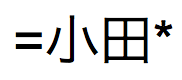 finds
finds 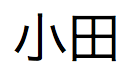 ,
, 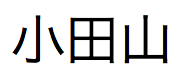 , and
, and 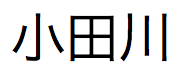
A phrase or sequence of characters that match when they are the first characters in a word (match phrase from word start)
The literal text (characters), including spaces and punctuation, between double quotation marks (
")"Marten and Jones Interiors"finds Marten and Jones Interiors but not Jones and Marten Interiors"
, Ltd." finds all companies with ", Ltd." in the name, but not those without the comma"Spring"finds Springville but not ColdSpring Harbor or HotSpringWords with one or more unknown or variable characters (any one character)
One wildcard character (
@) for each unknown characterGr@yfinds Gray and Grey@onfinds Don and Ron but not BronInvalid characters in a text field
?Invalid characters display as blank characters
Note To find the ? character, search for
"?".Digits in a text field (any one digit)
A
#character for each digit#finds 3 but not 30##finds 30 but not 3 or 300#3finds 53 and 43 but not 3Words with zero or more unknown or variable text characters in a row (zero or more characters)
*for all unknown charactersJo*nfinds Jon and JohnJ*rfinds Jr. and Junior*phan*finds Phan and StephanieS*finds Sophie, Steve, and SvenOperators or other non-alphanumeric characters, such as punctuation or spaces
The literal text (characters), including spaces and punctuation, between double quotation marks (
")"@"finds @ (or an email address, for example)","finds records containing a comma" "finds three spaces in a rowA character with special meaning, such as invisible characters or the find operators recognized by FileMaker Pro:
@, *, #, ?, !, =, <, >, " (escape next character)
\followed by the special characterFor a carriage return, in Browse mode, enter a carriage return in a field and copy it to the Clipboard. Then in Find mode, type
\and paste the carriage return.For a tab, type
\then press Ctrl+Tab (Windows) or Option-Tab (macOS).\"Joey\"finds "Joey"joey\@abc.netfinds the email address joey@abc.net\finds Joey preceded by a carriage return
JoeyWords with accented characters
The literal text (characters), including spaces and punctuation, between double quotation marks (
")"òpera"finds òpera but not opera(
òperawithout quotation marks finds both òpera and opera)Partial phrases, a sequence of words or characters (match phrase from anywhere)
Characters, punctuation, and spaces between double quotation marks (
"); place*before the quoted text to allow matching anywhere in the field, and*after to also allow the phrase to end in the middle of a word (see Notes)*"son & Phil"*finds Johnson & Phillips and Paulson & Philson*"son & Phillips"finds Johnson & Phillips and Paulson & Phillips but not Paulson & PhilsonExact matches of the text you specify (match entire field)
==(two equal signs) for a field content match==Johnfinds John but not John Smith==John Smithfinds John Smith but not Smith, John or John SmithersExact matches of whole words you specify (match whole word)
==Marketfinds Market, Market Services, and Ongoing Market Research but not Marketing or Supermarket=Chris =Smithfinds Chris Smith or Smith Chris but not Chris or Christopher SmithsonWords that contain Japanese hiragana, katakana, and kanji characters (Japanese-indexed fields only)
The characters
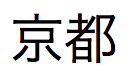 finds
finds 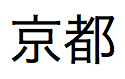 ,
, 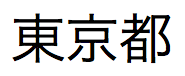 , and
, and 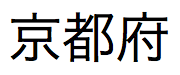
Kana characters in a Japanese-indexed field without differentiating between hiragana/katakana, voiced/semi-voiced/unvoiced kana, small/regular kana, and kana voiced/unvoiced iteration marks
~(tilde) and the character, to do a relaxed search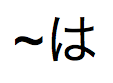 finds
finds  ,
,  ,
,  ,
,  ,
,  , and
, and 
-
Click Perform Find in the status toolbar.
Notes
-
Normally, finds are not case sensitive or width sensitive. For example, a find request that includes Japanese half-width characters will match results that contain the equivalent full-width characters.
You can perform case-sensitive and width-sensitive finds on a field by changing the default indexing and sorting language for the field to Unicode. However, this procedure will change the order in which the field sorts. If you do not want the original field to sort in Unicode order, create a calculation field whose formula is simply the field in which you want to perform case-sensitive or width-sensitive finds, and change the default indexing and sorting language of this field to Unicode. Then you can sort one of the fields, and perform find requests on the other. See Defining field indexing options and Defining calculation fields.
-
When using a quoted phrase with a leading
*, the phrase must still end at a word boundary unless you also add*after the closing". For example,*"Phil"would not find Phillips, but*"Phil"*would.