Configuring your integration
A configuration snippet—a JSON object with a URL and static token—is required to connect MCP clients to your database connections. They provide secure access to your configured FileMaker databases through AI assistants and other MCP-compatible applications.
Generating an MCP configuration snippet
Before you can generate a configuration snippet, you must first create a context and add a connection. See Working with contexts and Working with connections.
To generate a configuration snippet:
-
Click Generate Configuration in the sidebar.
-
Stay on the same tab to use a server entry configuration, or click Server File to use a server file configuration.
-
Do one of the following:
-
For direct connections, click Copy below the SSE Configuration section.
-
For command-based connections, click Copy below the Proxy Configuration section.
-
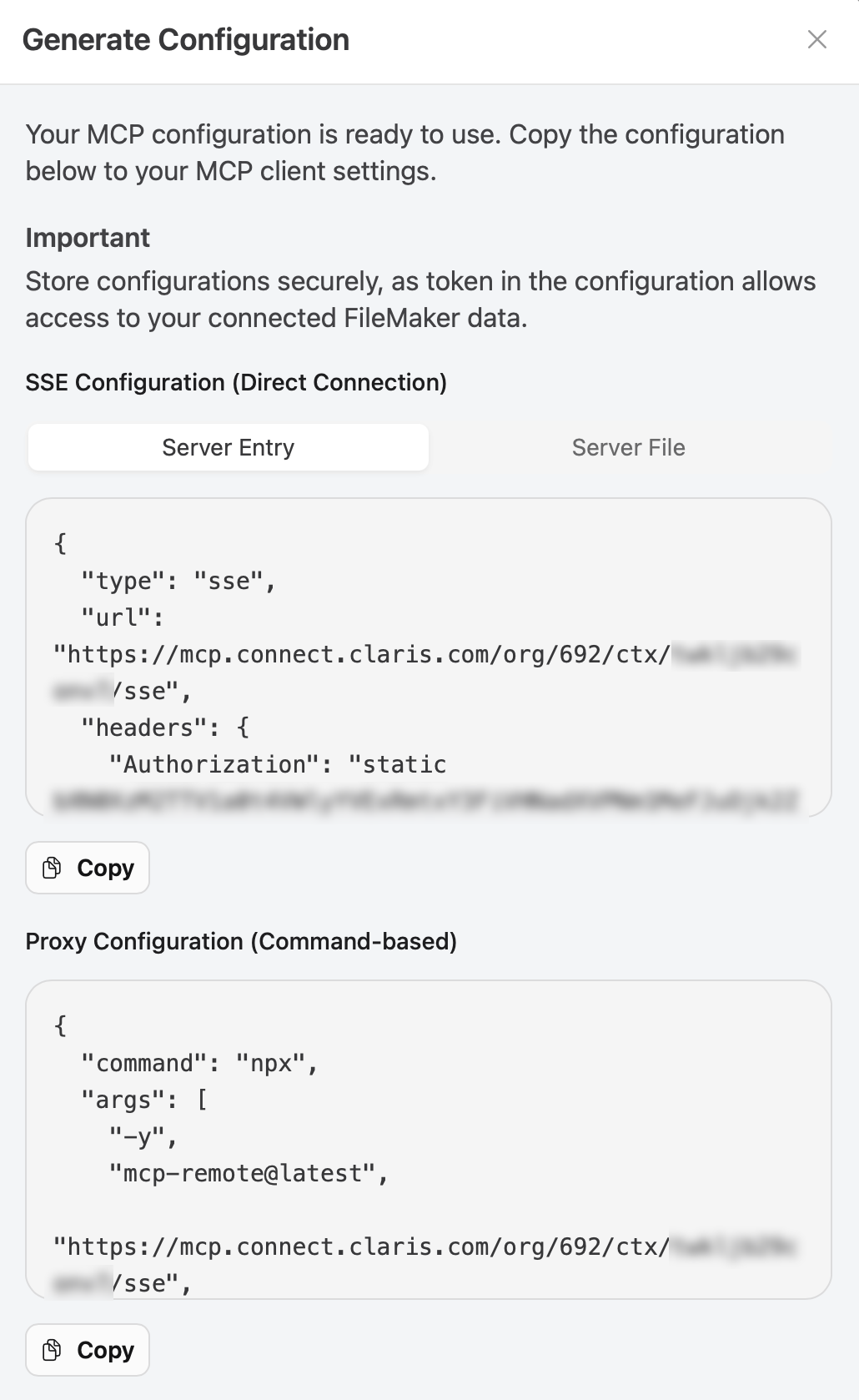
You only need one configuration snippet to access to all your configured connections.
Integration steps
-
Click Copy to copy the complete JSON (if you haven't already).
-
Paste the configuration into your MCP client settings.
See Connect to Remote MCP Servers or Connect to Local MCP Servers in Anthropic's Model Context Protocol documentation.
Your AI assistant can now access your FileMaker data through the configured tools.
Best practices
Security guidelines
Secure storage
-
Store configuration snippets in secure configuration files.
-
Never commit configuration snippets to version control.
-
Use environment variables or secure credential management systems.
Access control
-
Treat configuration snippets like passwords—they provide full access to your configured connections.
-
Don't share configuration snippets via email, chat, or other unsecured channels.
-
Consider creating separate connections for different teams or use cases.
Token management
Token types
-
SSE Tokens - Used with the web interface and most MCP clients using Server-Sent Events
-
Static Tokens - Available for CLI-based clients and developer tools
Authentication schemes
-
Bearer - Standard for SSE tokens -
Authorization: Bearer [token] -
Static - For static tokens -
Authorization: static [token]
Current limitations
-
The web application currently supports one active configuration at a time.
-
Static tokens require different configuration for developer tools like MCP Inspector.
Troubleshooting
Common authentication errors
Configuration not working
-
Ensure the configuration snippet was copied completely without extra spaces.
-
Verify the MCP client configuration syntax is correct.
-
Check that the server URL is accessible from the client environment.
Connection failures
-
Confirm your database connections are still active and properly configured.
-
Test connectivity from the Claris MCP application first.
-
Review firewall settings that might block the SSE connection.
Access denied
-
Check that your FileMaker database credentials are still valid.
-
Ensure the connected user account has appropriate permissions.
Next steps
Once you have a working configuration:
-
Test the connection with your preferred MCP client.
-
You can ask your client "Am I connected to Claris MCP?". If the answer is yes, you can then ask "What FileMaker database am I connected to?". If that returns the correct database, then you're successfully connected.
-
-
Explore the available tools generated from your database connections.