Managing connections
Once a connection is created and the context is in the Editing state, you can view, edit, and manage tools and connections.
Note While in the Testing state, you can only view tool details.
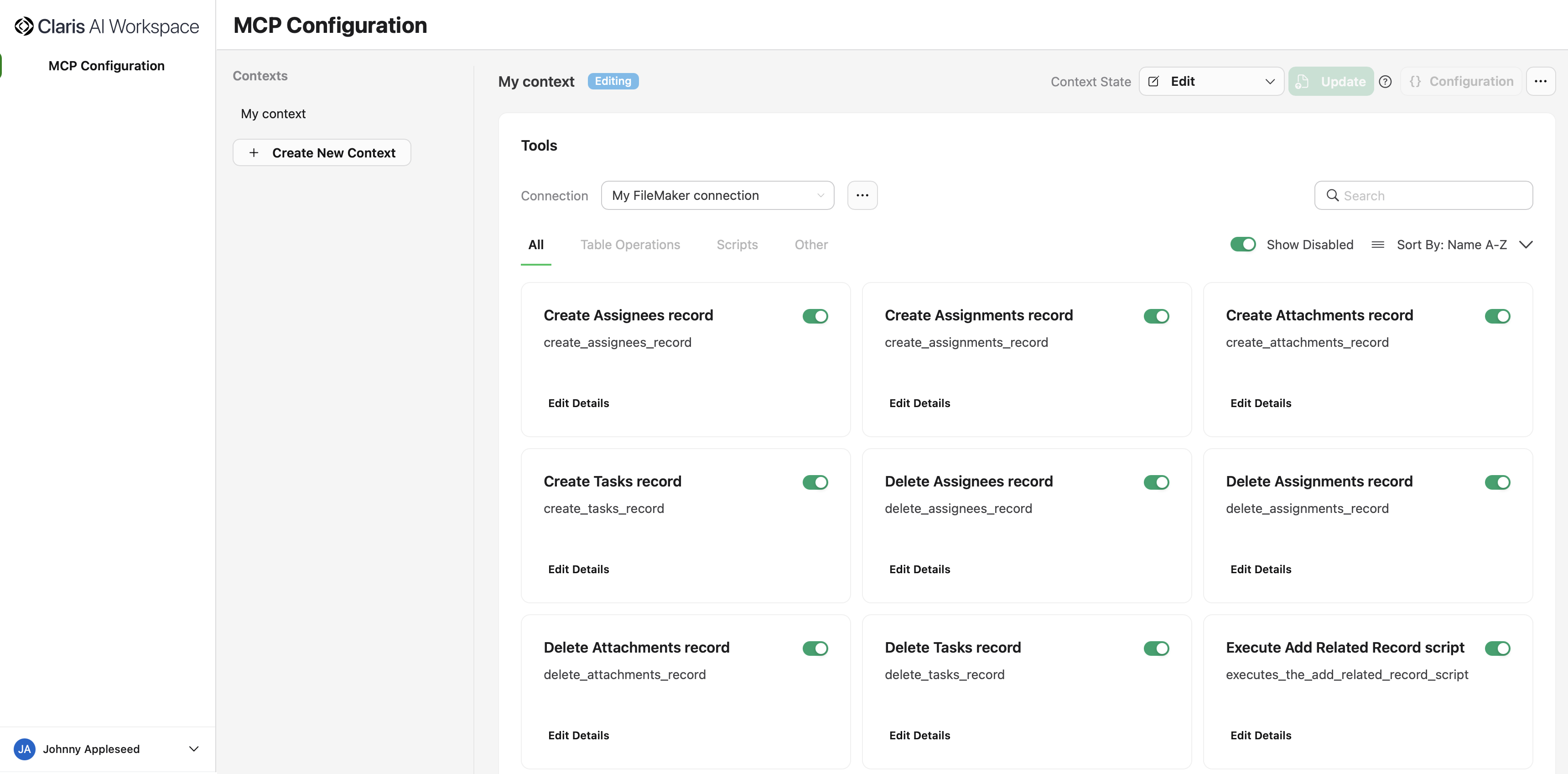
With a context selected and a connection selected from the Connection drop-down menu, you'll see the following:
Available tools section
-
Category filter tabs:
-
All - Shows all available tools
-
Table Operations - Database CRUD operations
-
Scripts - Running FileMaker scripts
-
Other - Additional tools
-
-
A search box for filtering tools by name
-
A toggle to show or hide tools that are turned off
-
Sorting options:
-
Name A-Z (ascending)
-
Name Z-A (descending)
-
Enabled First
-
Disabled First
-
Tool cards
Each tool is displayed as a card showing:
-
Human-readable name that briefly describes functionality
-
AI-readable name (for example,
list_contacts_records) -
Detailed description of what the tool does
-
On/Off status with a green toggle
For more information on generated tools, see Tools guide.
Editing tool details
Each tool in your connections can be fully customized—edit names, titles, descriptions, and input schemas directly in the Claris MCP interface to match your workflow needs.
To do this, click Edit Details in the card of the tool you want to edit.
-
In the Edit Details tab, you can change the Title, Name, Description, and whether the tool is on or off.
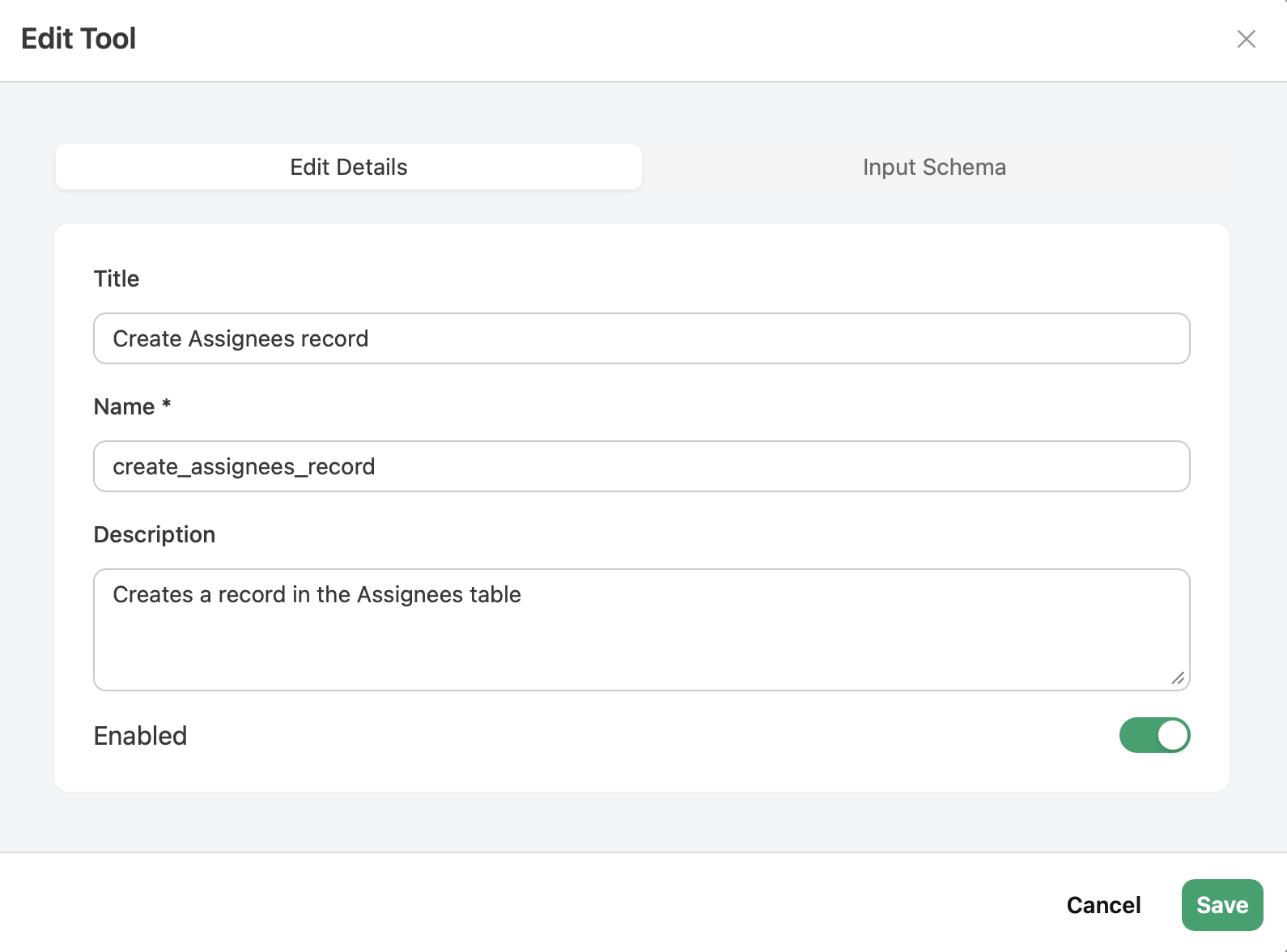
Note The Title and Description fields are used by LLMs to determine the best tool to use based on a given prompt. You should update these fields to be as descriptive as possible for the best results.
-
In the Input Schema tab, you can define the input parameters that this tool accepts. This schema will validate the inputs when the tool is used. Configurable parameters include:
-
JSON or Form (toggle)
-
Property Name
-
Type
-
Required (toggle)
-
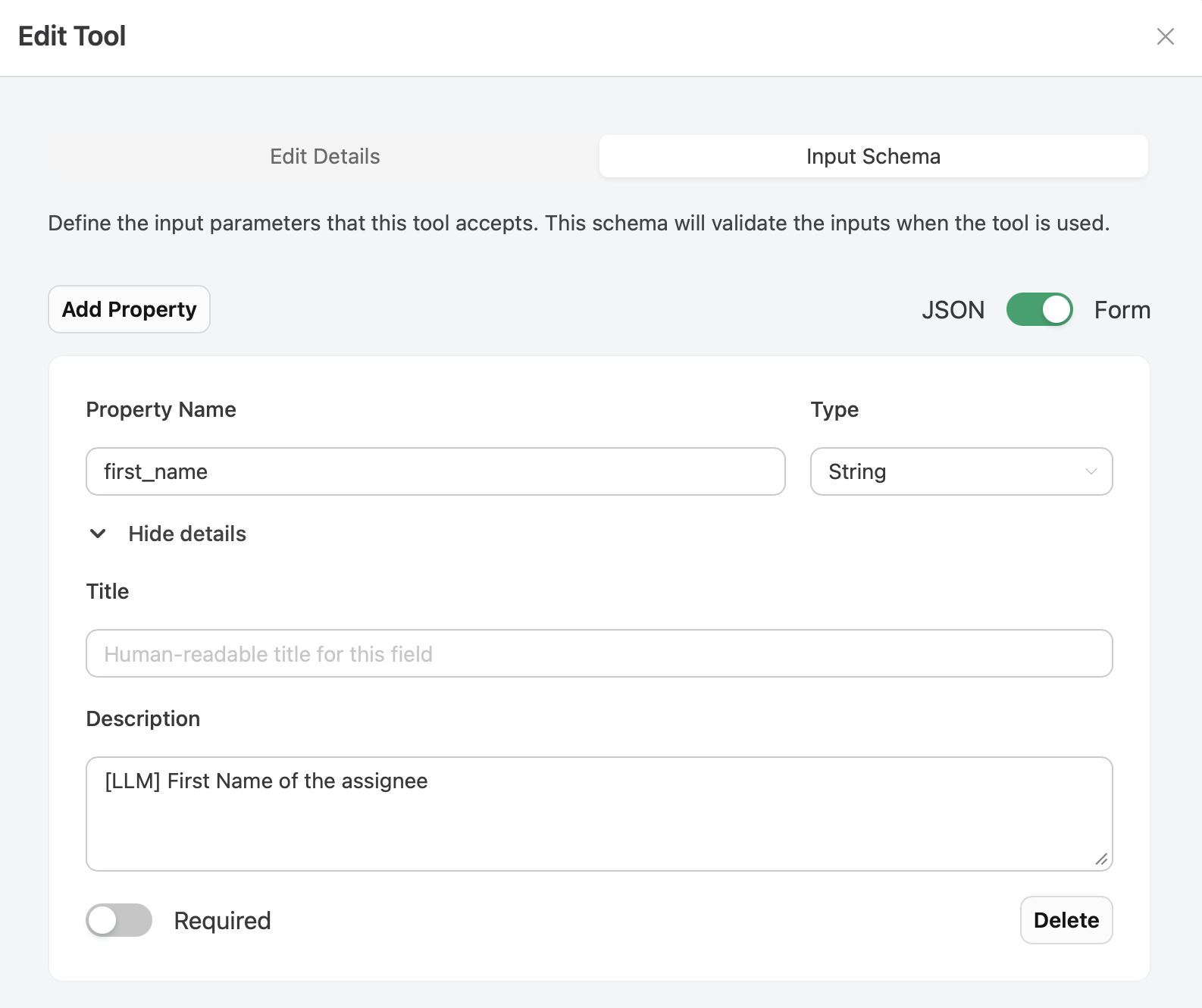
You can also click Add Property to add more properties or Delete to remove properties.
Deleting connections
To delete a connection:
-
With a context selected, select the connection you want to delete from the Connection drop-down menu.
-
Click ... next to the field, click Delete Connection, then click Disconnect.

Important
-
Deleting a connection cannot be undone.
-
All associated tools and configurations will be permanently deleted.