How ADT connects to FileMaker
The Agentic Development Toolkit (ADT) is a developer tool. It exists so that a coding agent can work on a FileMaker file, and it is only in the picture while that work is happening. The developer needs ADT installed. The people who use the solution do not.
Everything the agent produces lands inside your FileMaker file. Tables, fields, relationships, scripts, layouts, security, and anything else it builds are ordinary FileMaker objects, indistinguishable from work done by hand in FileMaker Pro. Once the work is done, the file is simply a FileMaker file. Its users open it as they always have, with no coding agent, no AI subscription, and no ADT installation, and nothing in the solution depends on an AI service to run.
Note Development time only ADT, the coding agent, and the pieces described on this page live on the developer's computer and nowhere else. Removing ADT after the work ships leaves the FileMaker file working exactly as it was.
Warning Code mode only ADT works only when your coding agent is operating inside a project folder. In Claude, that means Claude Code, in the terminal or in the Code tab of Claude Desktop. In ChatGPT, that means Codex mode. A plain chat conversation cannot reach your FileMaker file.
Two ways an agent reaches your file
ADT has two clients for your file, and they are separate programs signed in as separate accounts.
Schema, scripts, and layouts go through the filemaker command line. Think of filemaker as a headless FileMaker client of its own: it opens the file by its address, local or hosted, signs in with a Full Access account it holds for that file, and writes directly into the schema. FileMaker Pro does not need to be running, and no live connection is involved.
Running things in the file goes through Agent Access, a setting built into FileMaker Pro 26.1 and later (File → Manage → Agents). With it on, ADT can ask your running copy of FileMaker Pro to act in a file it already has open: run a script and return its result, execute SQL, serve Data API requests, read layout metadata, and deploy an app. That is what typegen, deploy, the agent's data tools, and browser preview use. It all happens inside the FileMaker Pro process, under whatever account you are signed in with there, which may not be the account filemaker uses. See FileMaker credentials for the side-by-side. The rest of this page explains the pieces of this second path, because they are the ones that can get out of step.
The pieces of a Web Viewer app
A Web Viewer app is made of a few distinct pieces that only fully overlap during development. Knowing which piece is doing the work at any given moment is the fastest way to debug a stuck connection.
-
Your project — a directory with
adt.json, the registry of which FileMaker files this work is about and which apps exist. It's not a toolchain; a project on its own has no dependencies. See Projects, Connected Files, and Apps. -
A connected file — an entry in
adt.jsonpointing at a real FileMaker file, byfmnet://address or.fmp12path. A project can record several. -
Your FileMaker file — the tables, layouts, and scripts you're building against. Once you deploy, it hosts a Web Viewer object running your built app.
-
ADT's components — installed into the file with
adt components apply --file "<name>". They add the scripts, custom function, and ADT App layout your Web Viewer app calls at runtime.adt components status,reconcile, andremovemanage them from there. See Install and Connect. -
Agent Access — a setting built into FileMaker Pro itself (File → Manage → Agents), not something ADT installs. Turned on, FileMaker Pro lists the files it has open on
http://127.0.0.1:19080by default and can run a script in one of them and return itsExit Scriptresult. ADT reads a custom port fromFM_DEV_SERVER_PORT. A prompt inside FileMaker Pro grants permission to do this for a given file, and the grant lasts until FileMaker Pro quits;adt connectraises that prompt as its last step, and the dev server's first call after a restart raises it again. -
filemaker— the FileMaker CLI that does all schema, script, and layout work. It needs only a file address inadt.json; FileMaker Pro doesn't have to be running, and it never touches Agent Access. -
The coding agent plugin — the ADT plugin installed in your coding agent. It carries the skills and tools the agent uses to inspect your file, perform authorized operations, and drive Web Viewer work. It is what turns a coding agent into one that understands FileMaker.
-
Your Web Viewer app — the React/Vite project at
webviewer-apps/<app>/, built with@adt/fmdapiand bound to exactly one connected file. During development it runs in a browser tab; once deployed, its builtdist/index.htmlruns inside its own Web Viewer object on a layout in the file.
Dev time: what talks to what
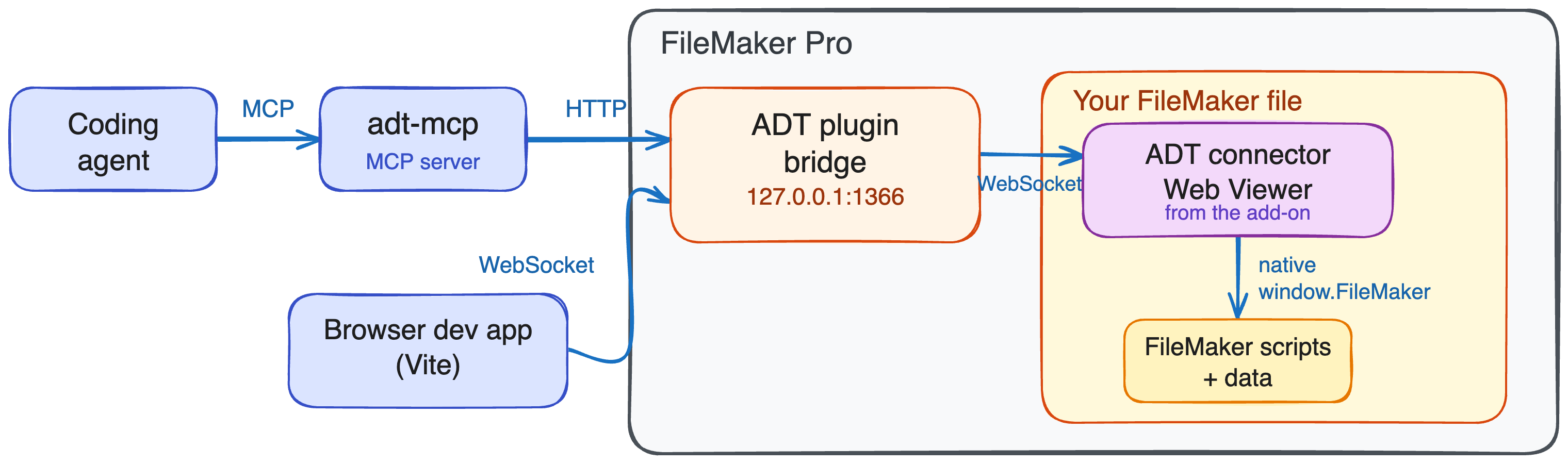
Two different dev-time flows both route through FileMaker Pro's Agent Access on 127.0.0.1:19080 by default, or on the port set by FM_DEV_SERVER_PORT. The diagram shows the default. Neither flow is present once the app is deployed. Schema work through filemaker is a third path that bypasses Agent Access entirely.
Agent flow. Your coding agent uses the tools in the ADT plugin to inspect the file and perform authorized operations. Live Web Viewer work runs scripts in the FileMaker Pro session you are already signed in to, through Agent Access, once the grant prompt has been answered for this FileMaker Pro session. See Agent Workflow.
Browser dev flow. The fmBridge() Vite plugin (from @adt/fmdapi/vite) asks Agent Access which files FileMaker Pro has open, picks the connected file, and gives your dev page a window.FileMaker.PerformScriptAsync that performs a script in that file and resolves with its Exit Script result — the same call the page would make inside a real Web Viewer. The page talks to the Vite dev server at /__fm/fmfetch, and the dev server talks to FileMaker Pro on the default port 19080 or the port set by FM_DEV_SERVER_PORT; there's no WebSocket involved. It re-resolves the file on every call, so if the file is closed there's nothing to reach. If no FileMaker file is open, the dev server doesn't fail — it keeps running and injects a stub window.FileMaker whose methods reject with an explicit message that FileMaker Pro doesn't have the file open. That keeps failures loud at call time instead of silent. See Build a Web Viewer App.
The Agent Access port is a property of this machine and this copy of FileMaker Pro, not of the project. ADT therefore takes the override from the environment by design and does not record it in adt.json. See System Requirements for persistent setup.
Runtime: what talks to what once deployed
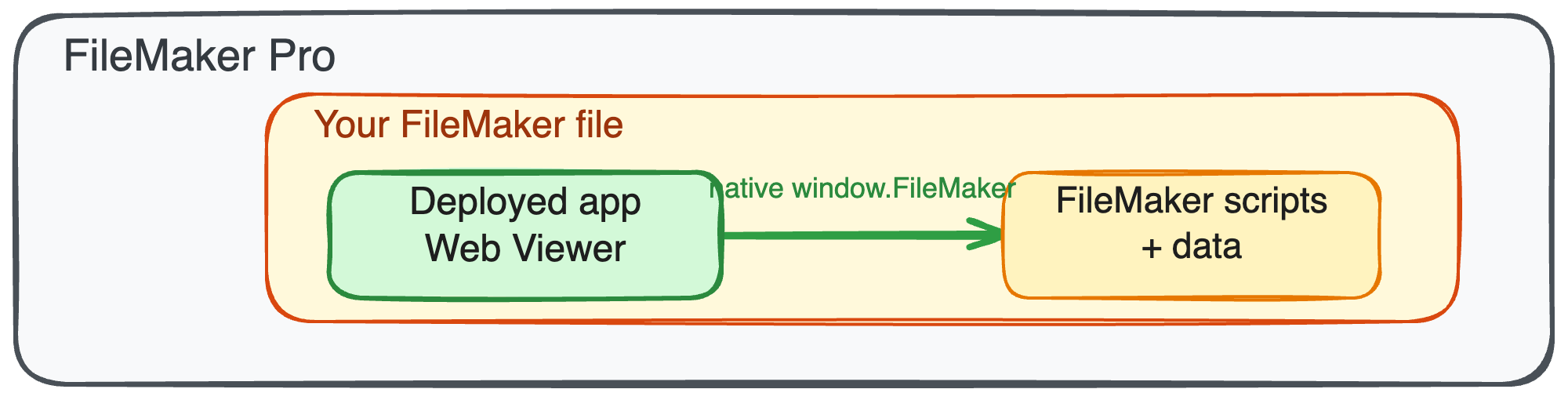
Deploy to FileMaker stores the built app in FileMaker persistent data so a Web Viewer object can load it. Agent Access is only a dev-time delivery mechanism; it is not part of the stored application, and a deployed app needs neither Agent Access nor a grant to run.
Inside that deployed Web Viewer, window.FileMaker is provided natively by FileMaker Pro, not by a dev-time mock. Many apps call a FileMaker script once on load — before rendering the full UI — to fetch initial props: user context, configuration, permissions, or other startup data. From there, your app reaches FileMaker through two request paths, both from @adt/fmdapi:
-
WebViewerAdapter— used by the generated, type-safe Data API client. It calls a single FileMaker script (named by your app'sadt.config.json— ADT_execute_data_api in the default template) with an action, layout, and payload; that script runs FileMaker's Data API engine and returns records. Multiple calls made close together can be folded into one script invocation (a top-levelrequestsarray), cutting down on script-call overhead. -
fmFetch()/callFMScript()— a direct call to any other FileMaker script, for logic the Data API doesn't cover: validation, external API calls, file system work, print and PDF generation.
Both paths ultimately ride native Web Viewer primitives. fmFetch calls window.FileMaker.PerformScriptAsync(script, parameter) and resolves with whatever the script exits with via Exit Script, so app code can await a promise instead of tracking anything by hand. callFMScript calls FileMaker.PerformScriptWithOption(script, parameter, option) fire-and-forget, for calls that don't need a return value. See scripting with JavaScript in web viewers in the Claris docs.
Good to know
-
Caching — apps typically use TanStack Query, treating FileMaker data and scripts as server state: cached locally, refreshed in the background, and invalidated after writes.
-
Saving — Web Viewer forms use explicit save/cancel actions; they don't auto-commit on field exit the way native FileMaker layouts do.
-
Record locking — typing into a Web Viewer field does not hold a FileMaker record lock. Handle conflicts with modification-count checks or by routing saves through a script.
-
Container data — has to be Base64-encoded to travel through the JSON bridge.
-
Printing and PDFs — hand a payload to a FileMaker script and let FileMaker's native printing or Save as PDF handle the rest.
Related pages
-
fmBridge() — a closer look at the dev-time bridge and browser workflow.
-
Call FileMaker Scripts from an App — when to reach for a script instead of the Data API path.
-
Generate Types with Typegen — configure layouts and generate schemas, types, and clients.
-
Deploy to FileMaker — how to get a build into a Web Viewer.