Install and connect
This guide gets you from nothing installed to an agent that can see your FileMaker file: install ADT, create a project, connect your file, and verify the connection. Building a Web Viewer app comes later and is optional — you can do schema, script, and layout work without ever touching a JavaScript toolchain.
Note What's a project? A project is simply a folder on your computer where your agent lives and works. If you're new to AI agents, this may be an unfamiliar idea: instead of working inside FileMaker Pro's windows, you open this folder with your agent and talk to it there. The folder holds the agent's instructions and a record of which FileMaker files it can work on — your FileMaker files themselves stay right where they are.
ADT installs several pieces that work together: the adt CLI with an embedded MCP server, the filemaker CLI that does all schema, script, and layout work, a project template, and the fm-cli agent skill. It also installs the component bundle that adt components apply can add to a file later — that's only needed for Web Viewer apps. Web Viewer development itself uses FileMaker Pro's built-in Agent Access, not anything ADT installs.
The CLIs ship inside the ADT plugin for your agent to run — nothing is added to your own shell PATH. You drive ADT through prompts to your agent, not terminal commands.
Note Preview, macOS only ADT is provided as a preview to gather customer feedback. It may change significantly in future releases and is not intended for use in production systems. A Mac is required — Intel and Apple silicon are both supported. Windows is not a supported target today.
Install ADT
-
Download and run the installer.
ADT is distributed as a signed, notarized macOS installer package. There's no public download location — obtain the current build through the private group in Claris Community.
Run the
.pkg. It installs theadtandfilemakerCLIs, and — if Claude Code is installed — the ADT Claude Code plugin. See Install ADT for the full procedure, what it places on disk, and how to verify the install.When it finishes, restart any running Claude Code sessions so they pick up the ADT plugin. If FileMaker Pro was already open, restart it too so it loads the new plugin.
-
Open your FileMaker file in FileMaker Pro and turn on Agent Access.
ADT works with hosted or local FileMaker files. See Prep your FileMaker file below for what each case needs, and turn on Agent Access as described there — ADT needs FileMaker Pro 26.1 or later for this.
Prep your FileMaker file
Local file
A file opened directly in FileMaker Pro must be shared over FileMaker's peer-to-peer protocol so ADT can reach it:
-
In FileMaker Pro, choose File > Sharing > Share with FileMaker Clients...
-
Turn Network Sharing to On.
-
Select your file under Currently open files.
-
Under Network access to file, choose All users.
-
Click OK.
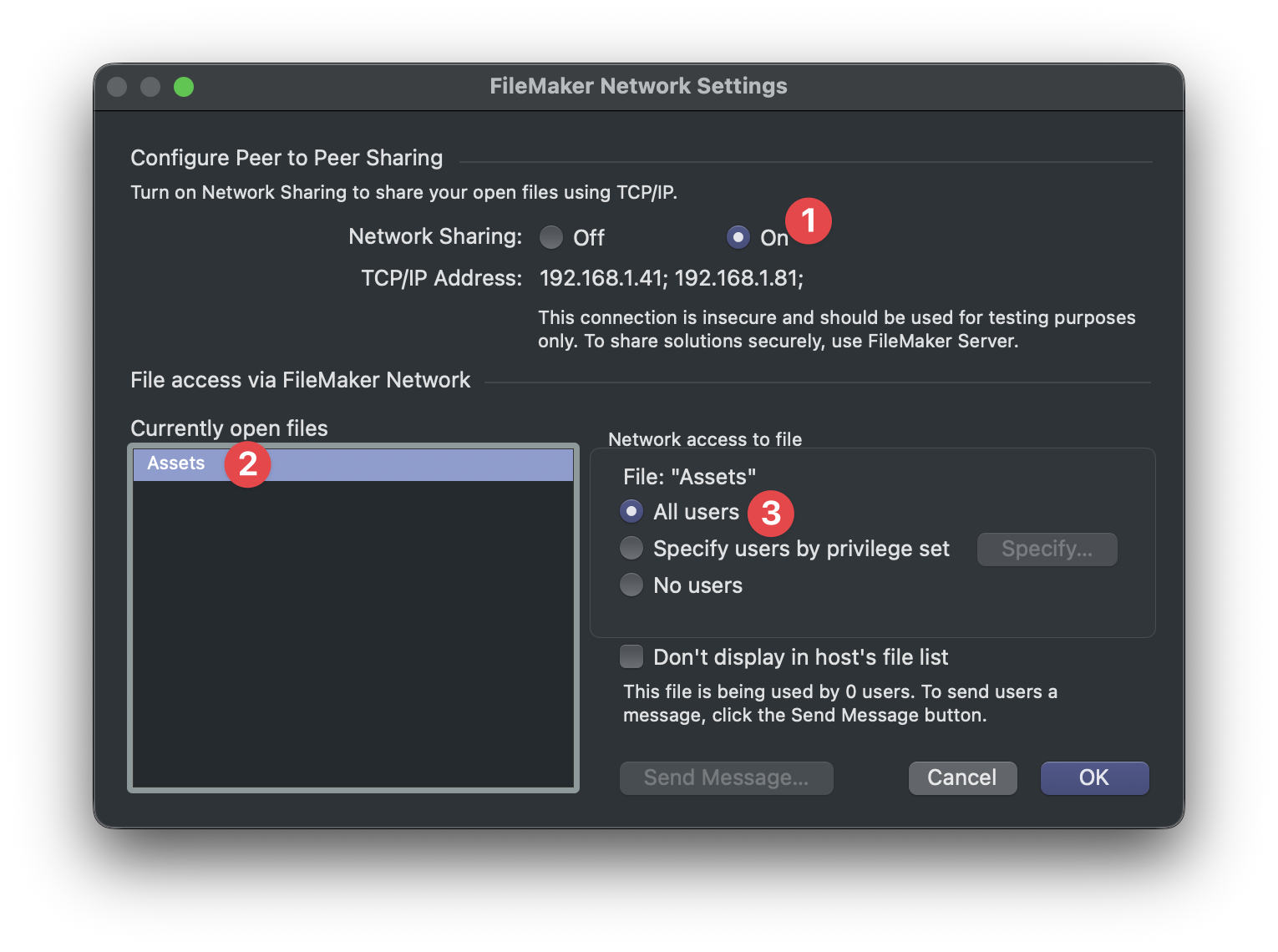
Warning Peer-to-peer sharing is for development As the dialog itself notes, this connection is intended for testing. During the preview, work on a copy of your primary file, or on a dev server where you have backups.
Hosted file
Nothing to configure — the server already shares the file. Just open it in FileMaker Pro on your development machine and leave it open; ADT connects to the copy you have open.
During the preview, prefer a dev server where you have backups over your production host.
Turn on Agent Access
Web Viewer development needs FileMaker Pro 26.1 or later with Agent Access enabled, in addition to whatever the tab above needs:
-
In FileMaker Pro, choose File > Manage > Agents... If it is not there, quit and reopen FileMaker Pro after running the installer. See The Manage Agents Option Is Missing if it's still not there.
-
Tick Enable Agent Access for this application.
-
Leave the port at 19080, or set
FM_DEV_SERVER_PORTin your shell profile or coding agent host to match a different port. ADT defaults to19080when the variable is not set.
Agent Access stays on until you turn it off, and it's per copy of FileMaker Pro. The first time ADT runs a script in a file, FileMaker Pro shows a prompt asking you to allow it; adt connect raises that prompt as its last step so you can answer it right away. The grant lasts until you quit FileMaker Pro, so expect the prompt again after a restart. The dev server's bridged calls trigger it too. See Grant Agent Access to a file.
The port is also machine-specific, so ADT reads it from the environment instead of storing it in adt.json. See System Requirements for where to make a custom value persistent.
Create a project and connect your file
Installing ADT doesn't connect anything on its own. A project is a directory containing adt.json, agent instructions, and a git repo — a registry, not a toolchain. No Node, no package.json, no dependencies. A project can connect several FileMaker files; connecting records an address in adt.json and doesn't open, create, or modify the file itself.
-
Create the project and connect your file.
Create a blank folder, open Claude Code in it, and run the project setup skill:
Copy/filemaker-agentic-development:adt-project-setupIf the agent recognizes the command, the ADT plugin is installed and loaded. If it does not, go back to Manual configuration. You can also ask in plain words, though the agent has less to go on that way:
CopySet up a new project using FileMaker's Agentic Development Toolkit in this folder. I already have the file open in FileMaker Pro. If you have any trouble, let me know what I need to do.The agent asks FileMaker Pro what's open, connects the file you choose, and writes
adt.json, agent instructions, and a git repo. See Connect a FileMaker File for what a finished project looks like.Note Connecting is non-fatal If the connect step fails, the project is still created and usable. Ask the agent to connect the file again once you've fixed what it flagged.
-
Enter your credentials.
When the agent connects the file, a native dialog appears asking for the file's account credentials. Enter a [Full Access] account — ADT needs Full Access to work on the file. Your credentials are stored securely in your macOS keychain; they're never written to
adt.jsonor passed on a command line. -
Connect another file, if you need one.
A project can connect several FileMaker files. Open the next file in FileMaker Pro and ask:
CopyConnect the FileMaker file I just opened to this project as well. -
Verify the setup.
The agent verifies as it goes, running ADT's diagnostics and reporting ready, degraded, or blocked. If anything is wrong it tells you what only you can fix — see Troubleshoot ADT for what each state means.
That's a project and a connected file — enough for schema, script, layout, and data work. A Web Viewer app is a separate, optional thing that binds to one connected file and creates a JavaScript workspace; taking that on is also when ADT installs its components into your file with adt components apply (see Build a Web Viewer App).
Verify the connection
Once those steps are done, open Claude Code — the desktop app or the CLI — and ask it to confirm ADT can see your FileMaker file. A good first prompt:
Use ADT to verify my FileMaker connection, list the connected file, and summarize the available layouts.

If nothing is connected, tell me what to fix before I continue.
The agent starts with troubleshoot_setup, which checks the ADT installation, FileMaker connection, and script execution:
-
ready— the intended FileMaker file passed every check. -
blocked— something is stopping ADT from reaching the file. Follow the remediation steps, then ask the agent to runtroubleshoot_setupagain. -
degraded— ADT works, but something is off and isn't blocking you. Components from an older build land here; runadt components reconcile --file "<name>".
If multiple files are connected and none was chosen, the agent picks the intended file and reruns troubleshoot_setup.
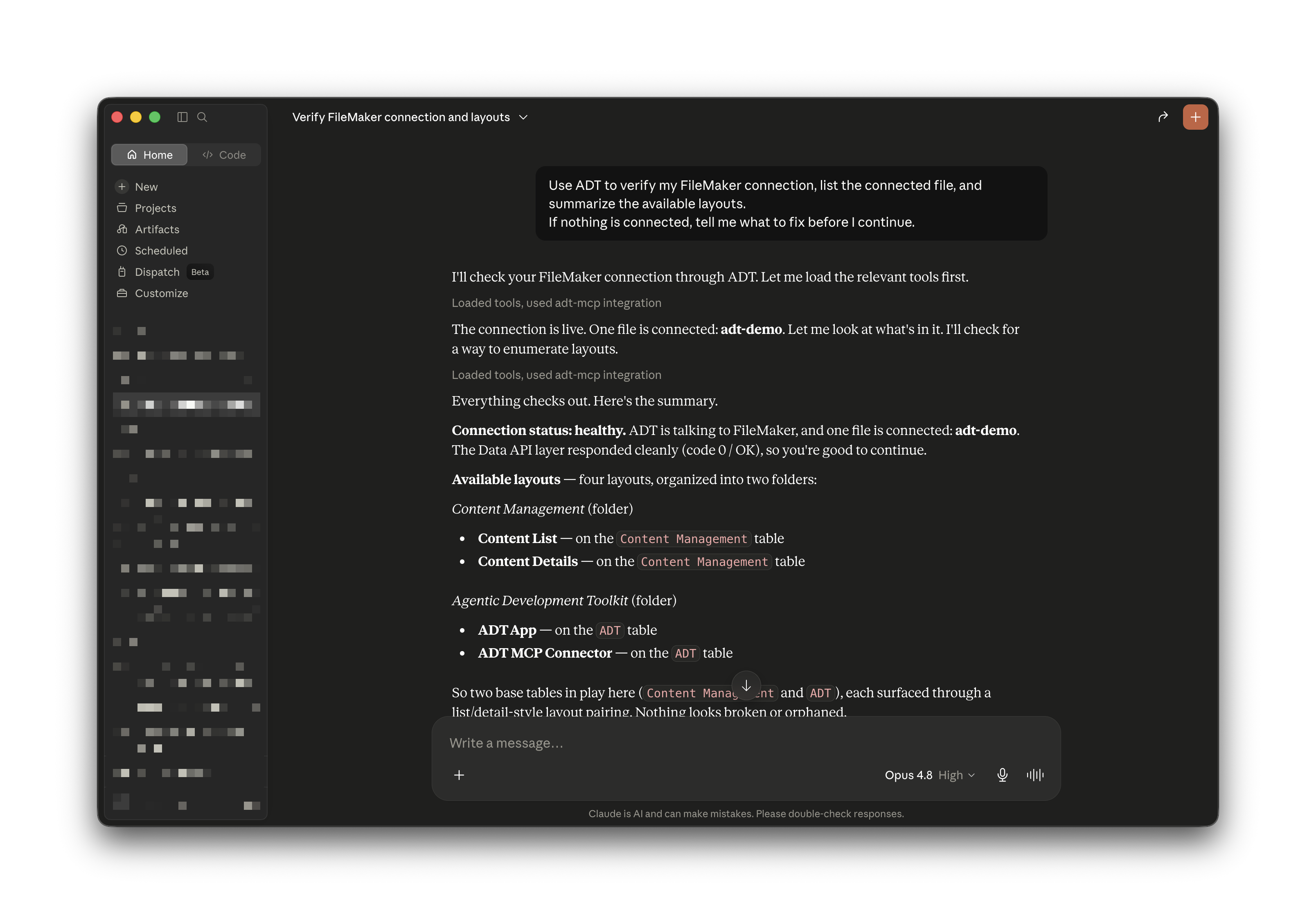
If the agent still can't see your file, see Troubleshoot ADT.
Note What only you can do ADT can't dismiss a FileMaker dialog that's blocking a script, or turn on network sharing so a file is reachable over fmnet://.
Note Advanced: ask for the full report The agent runs diagnostics behind the scenes, so you rarely need to ask. If you want the raw report, ask your agent to share ADT's full diagnosis — it covers the FileMaker setup report plus installation and project checks, and can target one file when several are connected.
Two lanes
ADT reaches FileMaker two different ways. Knowing which lane you're in saves the most confusion:
-
The
filemakerCLI lane — schema, script, and layout work.filemakeris its own headless FileMaker client, signed in with a Full Access account it holds for the file. It needs only a file address recorded inadt.json. FileMaker Pro doesn't need to be open, and no live connection is required. -
The Agent Access lane — everything ADT does through your running copy of FileMaker Pro: running scripts, SQL and Data API requests, layout metadata, type generation, deploy, and the live data bridge that powers browser preview. It runs in FileMaker Pro's process under the account you are signed in with there. Needs FileMaker Pro 26.1 or later running, Agent Access on, your file open, and the grant prompt answered for this FileMaker Pro session.
A broken Agent Access lane blocks the second list only; schema work through filemaker carries on. Your agent's diagnosis names which lane each problem affects. See FileMaker credentials for which account is in play in each lane.
The setup record
Every adt init and adt app add writes a machine-readable setup summary and a human-readable log, so a failed step tells you what to fix. See Connect a File for the details.
Next step
Continue to Explore Your File.