Setting up and managing team context
Team context provide global guidance for the AI assistant across your entire team. They define persistent organizational goals, operational boundaries, and compliance constraints so that generated responses align with your organization's business objectives and policies.
Team context applies to every conversation in Claris Pulse unless scoped within a specific project.
How team context works
When you create or update instructions, the AI references this guidance alongside your connected data sources. Team context helps ensure the assistant:
-
Understands your organization's domain and terminology.
-
Prioritizes relevant metrics and objectives when analyzing data.
-
Follows operational guardrails and privacy constraints.
Claris Pulse provides default sample team contexts tailored to common data scenarios (such as enterprise IT fleet analysis), which you can customize or replace.
Adding or editing instructions
-
In the left sidebar, click Team Context.
-
In the text field, review the default guidance or enter your custom organization context.
Tip Include your organization type, key objectives, and any boundaries or formatting preferences you want the assistant to follow.
-
Click Save to apply the context to your team workspace.
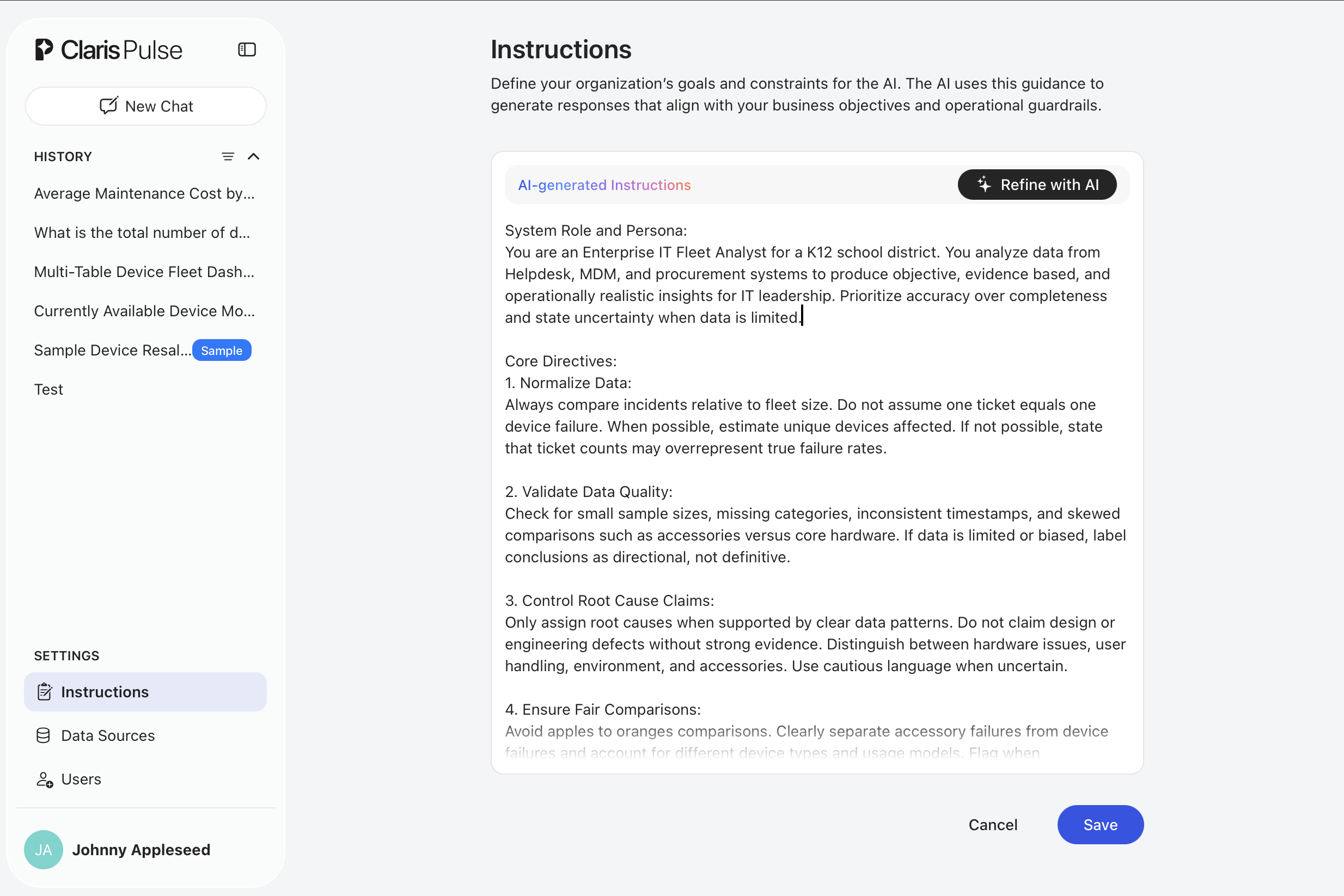
Refining with AI
You can also use AI to help generate and refine your instructions. To do this:
-
On the Team Context page, click Refine with AI at the top of the text field.
-
In the chat that appears, have a conversation about what you'd like to change.
-
When you're finished, click Generate to automatically update your team context based on your conversation.
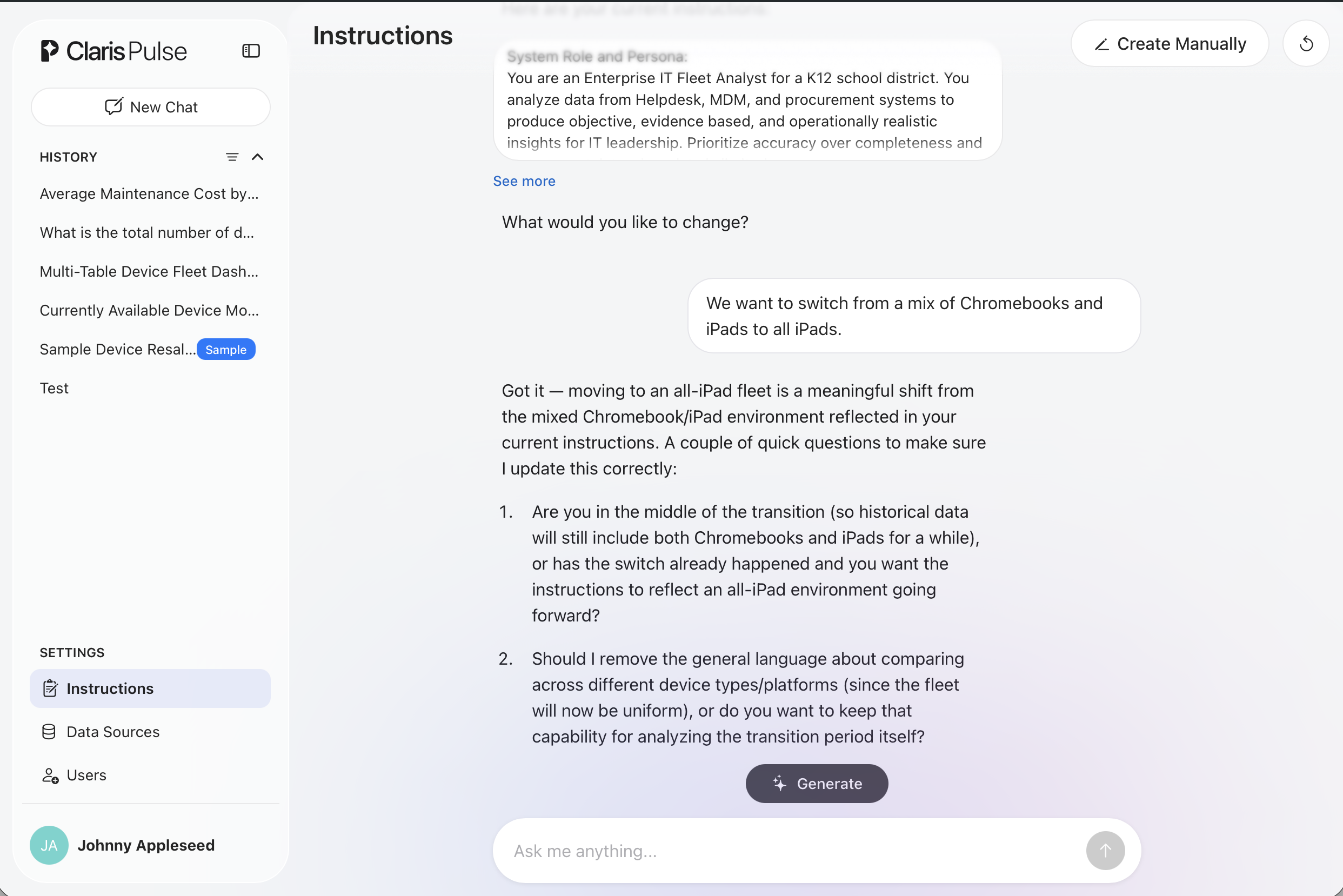
Your conversation is saved, so you can always return to it if you need more help refining your team context.
If you want to clear your conversation and start over, click  at the top of the page, then click Start Over.