Managing connections
Once a connection is created, you can view, customize, and manage it through the connection detail page and various tools.
Connection detail page
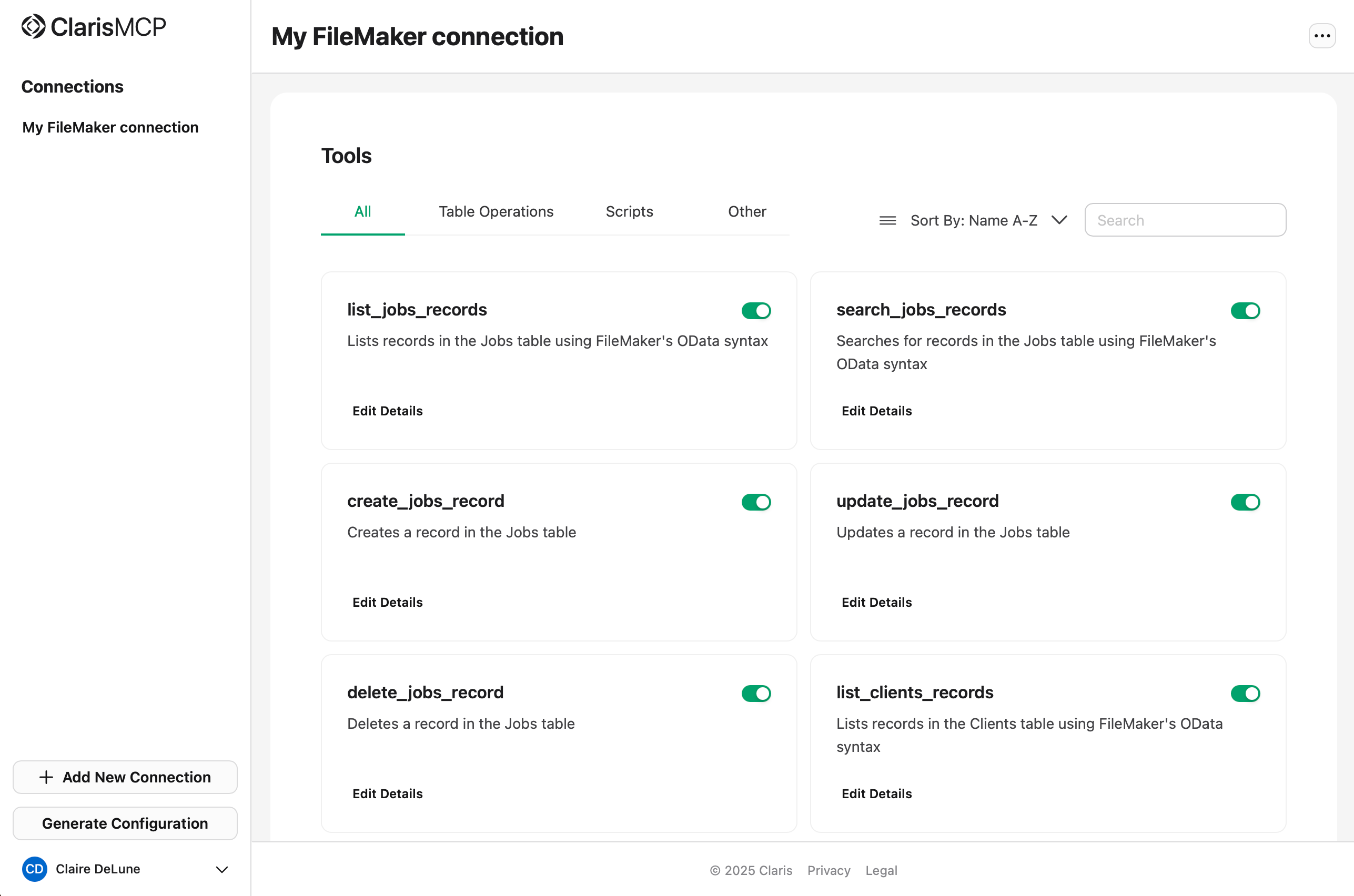
Clicking on a connection in the sidebar opens the connection detail page. This page shows:
Connection Header
-
Connection name as the page title
-
Delete Connection button in the top-right corner
Available Tools Section
-
Total count of available tools (for example, "Available Tools (39)")
-
Search box to filter tools by name
-
Category filter tabs:
-
All: Shows all available tools
-
Table Operations: Database CRUD operations
-
Scripts: Running FileMaker scripts
-
Tool Cards
Each tool is displayed as a card showing:
-
AI-readable title (for example,
list_contacts_records) -
Human-readable name that briefly describes functionality
-
Detailed description of what the tool does
-
Enabled/Disabled status with a green toggle
Understanding tool types
The application automatically generates different types of tools based on your FileMaker database structure:
Table Operations
-
list_[table]_records- Retrieves records from a table -
search_[table]_records- Searches for specific records -
create_[table]_record- Adds new records -
update_[table]_record- Modifies existing records -
delete_[table]_record- Removes records -
get_[table]_definition- Returns the definition of a table
-
File upload capabilities
-
Container field management
Scripts
-
Converted from your FileMaker scripts
-
May include parameter handling
Editing tool details
Each tool in your connections can be fully customized—edit names, titles, descriptions, and input schemas directly in the Claris MCP interface to match your workflow needs.
To do this, click Edit Details in the card of the tool you want to edit.
-
In the
Edit Detailstab, you can change the Name, Title, and Description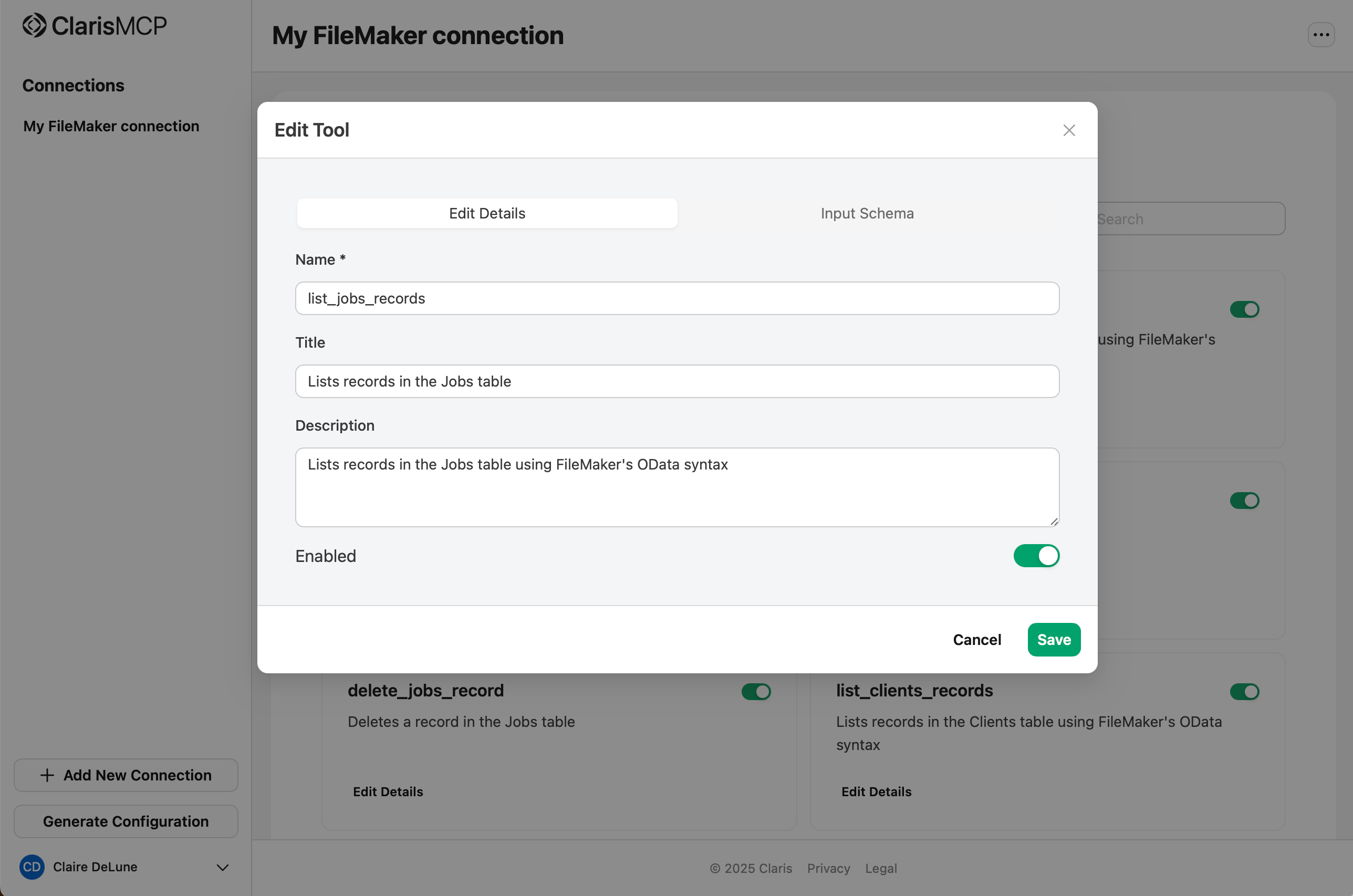
Note The Title and Description fields are used by LLMs to determine the best tool to use based on a given prompt. You should update these fields to be as descriptive as possible for the best results.
-
In the Input Schema tab, you can define the input parameters that this tool accepts. This schema will validate the inputs when the tool is used. Configurable parameters include:
-
JSON or Form (toggle)
-
Property Name
-
Type
-
Default Value
-
Nullable toggle
-
Required toggle
-
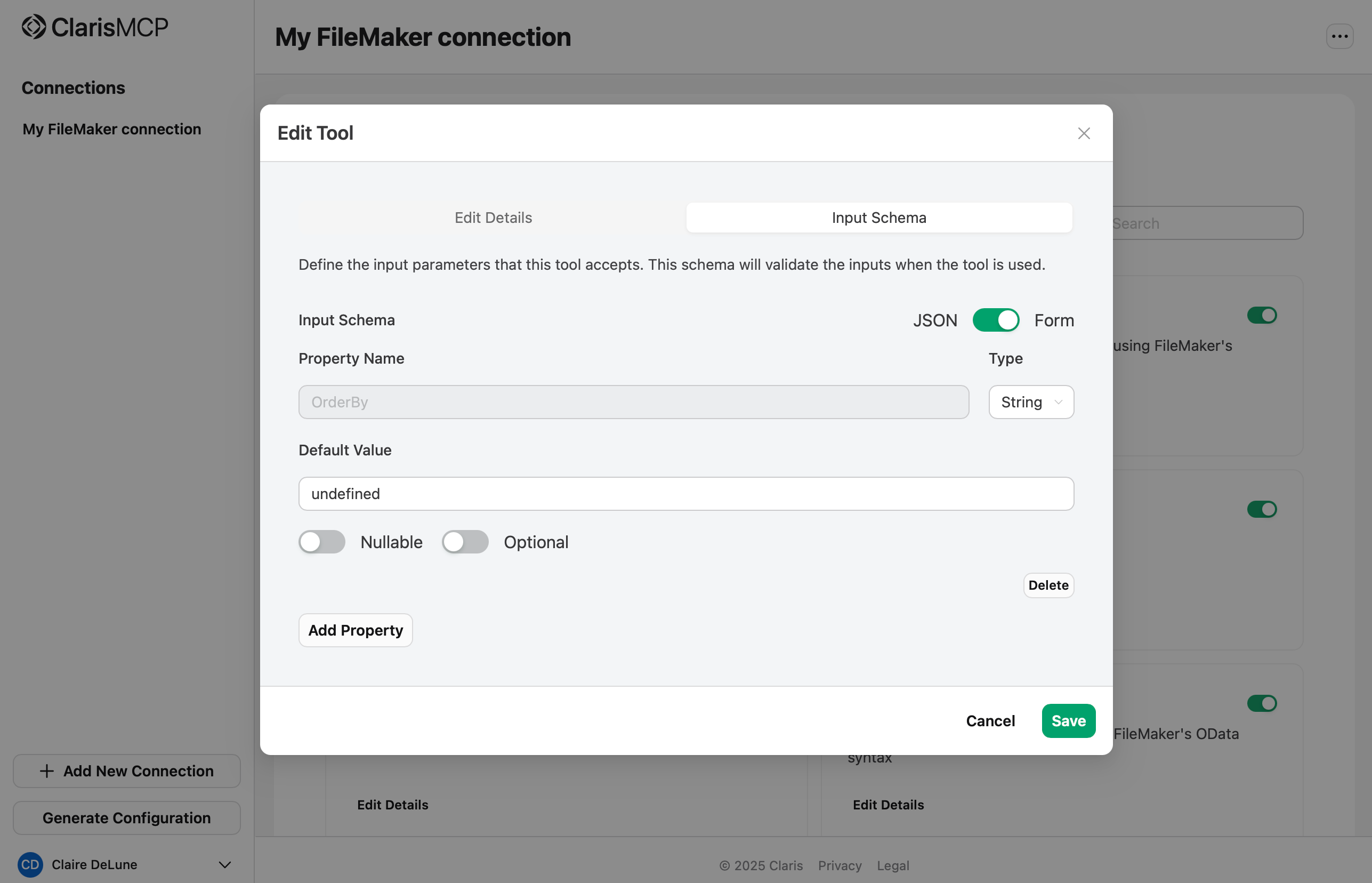
You can also click Add Property or Delete to add or remove properties respectively.
Removing connections
To remove a connection:
-
Go to the connection detail page.
-
Click ... in the top-right corner, click Delete Connection, then click Disconnect.
-
Confirm the removal in the dialog that appears.
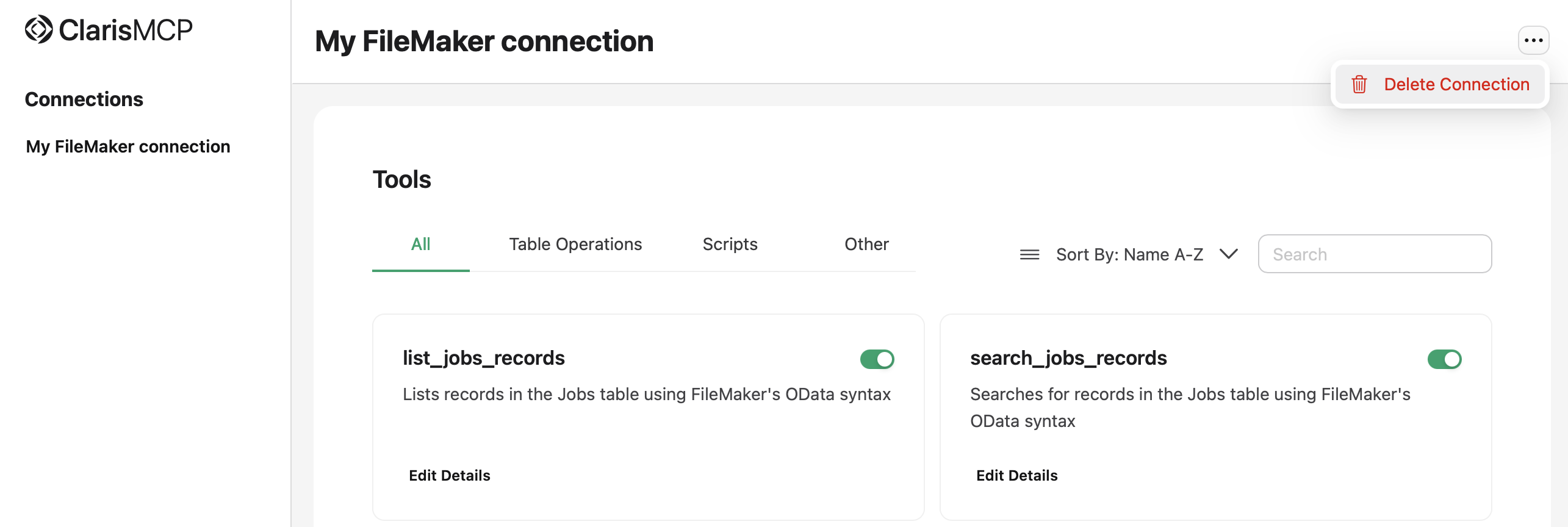
Important warnings
-
Connection removal cannot be undone.
-
All associated tools and configurations will be permanently removed.